Piano Songs instructions
Selecting a song
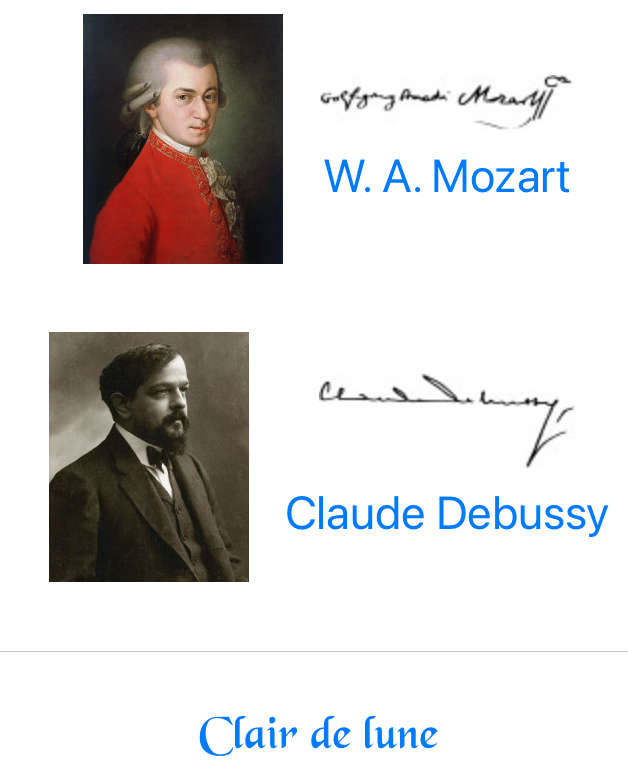
When Piano Songs is started, it displays a list of composers. To see the songs list for a composer, tap anywhere on the composer image or name. A list of songs will appear. To display a song simply tap on the song name.
Navigation
By default, Piano Songs starts at the first page of a song when it is displayed. To go to the next or previous page, swipe right or left. You may also tap outside of systems, tap to the left to go back and to the right to go forward.
Repeats
Piano Songs has some ways to navigate to start of repeats, to navigate to the start of a repeat tap on the repeat sign. To navigate to the start of the first repeat that the page shows, you may press Up arrow on your keyboard or Bluetooth pedal.
Seek bar
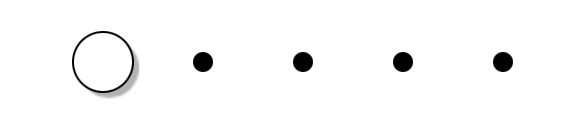
To navigate to anywhere within a song, simply tap on the music view but outside of any system. You may also tap on the page number. A seek bar will appear. Each circle in the seek bar represents one page (except when there are very many pages, the circles will then be as many as the space on the screen allows.) Press the seek bar and drag, the page will be selected accordingly. Also, you can make the seek bar disappear by tapping again at the music view but outside of any system.
Settings
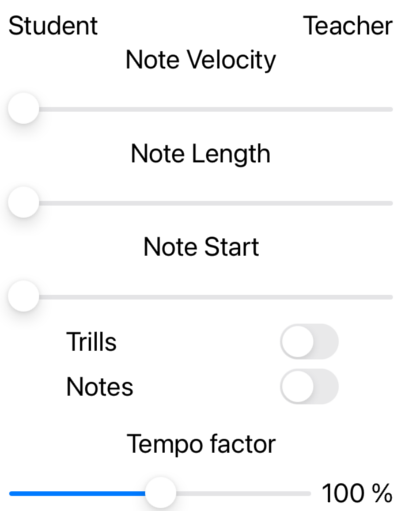
To go to the Settings page, tap the ⓘ button in the music view. The first three sliders are properties of the notes when played back from recording. They are linear, which means that you can select anything to be either as the student (recorded) has played by moving the slider to the far left, or as the teacher by moving the slider to the far right.
Their interpretation is as follows:
| Note velocity: | The note strength or loudness |
| Note length: | The note length |
| Note start: | The note position (in time) |
Also, there are two toggle buttons, Trills and Notes. They affect which notes will be played if the student and teacher notes differ. To choose to play back only the notes that the student has played, move the toggle to the left. To play back only teacher notes, move the toggle to the right. For Trills, the notes are affected that make up trills whereas Notes means all other notes.
Lastly, the tempo factor slider will affect the tempo at which notes are played. It ranges from 50 (half speed) to 200 (double speed) percent.
So let’s say you want to practice the note velocity in e.g., Debussy’s Clair de lune. You may start with the Note Velocity slider to the far right. You then record the section you want to practice and the velocity of the notes replayed will be as the teacher plays them. You then gradually move the Note Velocity slider to the left and make sure that the velocity of the notes remains the same. When you are finished, the note velocities that you play will be equal to the teacher’s. You may also practice the note lengths or the note starts in the same way or even a combination of these.
The Settings page also contains buttons for selecting a theme. You can set the theme light, dark, or the system default theme.
Playing
To start playing the teacher version of the song, tap  . The button will change into a ■.
button.
The song will start playing at the first bar of the current page. Also, to start playing on a certain bar, tap the bar somewhere inside the system. A message will appear saying ”playing from bar <bar number>”. Then tap as before.
Also, if the song has repeats in it, you may choose to start playing from the second repeat by clicking again on the same bar.
To stop playing, tap the ■ button.
The tempo of the played music can be changed with the Tempo Factor on the Settings page.
Recording
To record music, you need a USB cable. Connect the USB cable to your keyboard and to the iPhone or iPad. In the music view, a message will appear saying ”Connected <your keyboard name>”. To start recording, tap the ⬤ button. The ⬤ button will then change to a  button. To stop recording and play the processed music, tap the ■ button. To stop recording without playing anything, tap the button.
Using the keyboard
If you have a keyboard or a Bluetooth pedal, you may connect it to the iPhone or iPad. The following keys may be used:
| R | to start or stop recording |
| Space or Return | to start playing or stop recording or playing |
| Escape | to cancel recording |
| Home | to go to the first page |
| End | to go to the last page |
| Left arrow | to go to the previous page |
| Up arrow | to go to the start of repeat or previous page |
| Right or Down arrow | to go to the next page |